About Web Desk
Use this page as a quick guide for Web Desk tools, buttons, and pop-up menus.
Shortcuts & Workflow
Web Desk is designed to reduce tab clutter — open what you need, close it, and return instantly to your workspace.
Close current tab Windows: Ctrl + W Mac: Cmd + W
Switch tabs Windows: Ctrl + Tab Mac: Ctrl + Tab
Fullscreen webpage Windows: F11 Mac: Ctrl + Cmd + F
Switch windows Windows: Alt + Tab Mac: Cmd + Tab
Refresh page Windows: Ctrl + R Mac: Cmd + R
Open new tab Windows: Ctrl + T Mac: Cmd + T
Reopen last closed tab Windows: Ctrl + Shift + T Mac: Cmd + Shift + T
Left Side Bar Overview
Everything you need to build, manage, and customize your dashboard.
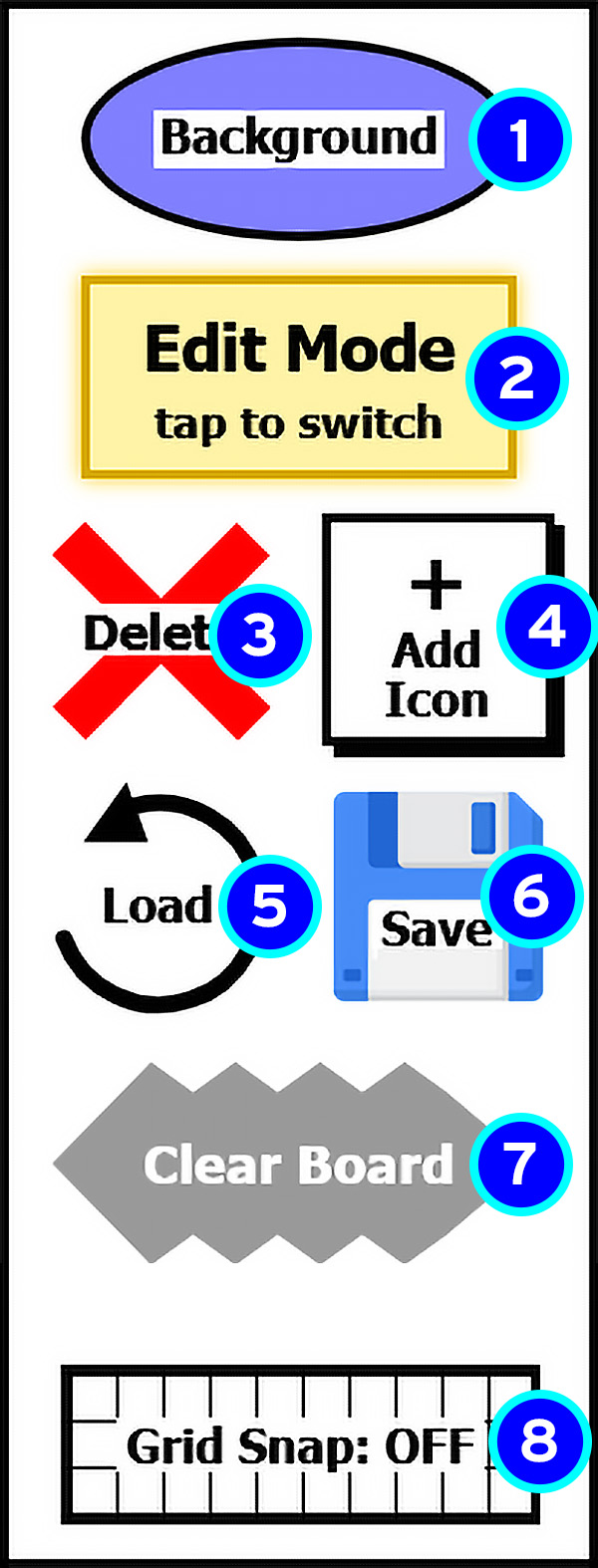
Icon Pop-up Overview
This menu is used to create a new icon for your dashboard.
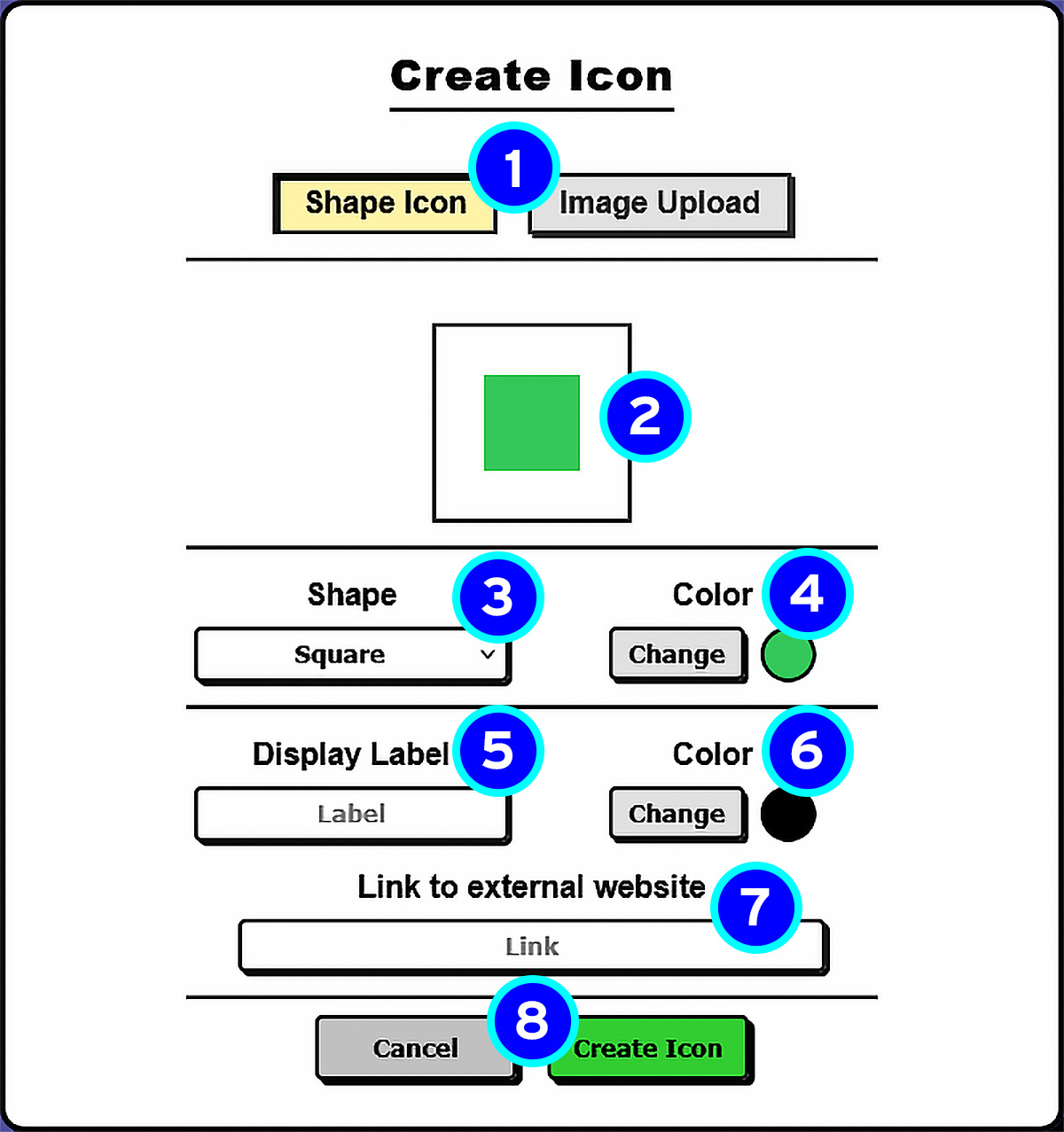
- Icon TypeChoose between a shape icon or an uploaded image.
- Shape PreviewShows what the shape will look like before creating it.
- ShapeSelect the shape used for the icon.
- Shape ColorChange the color of the icon shape.
- Display LabelSet the text shown under the icon.
- Text ColorChange the label text color.
- LinkAdd the website the icon should open.
- Create / CancelCreate the icon or close the pop-up without saving.
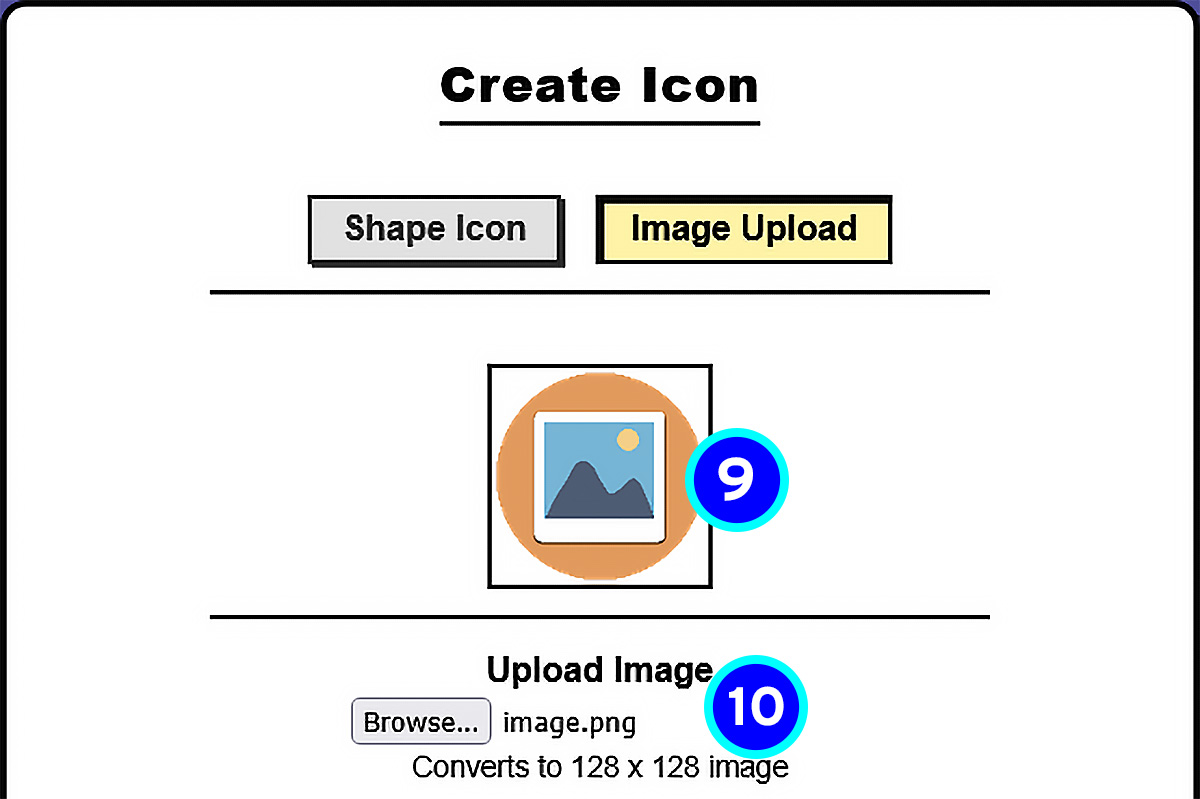
- Image PreviewShows what the image will look like before creating it. The upload is converted to 128 × 128 pixels while keeping its image ratio.
- Image SelectionOpens your file window to select your image.
Other Buttons Overview
These buttons help with saving layouts, importing data, and switching window modes.
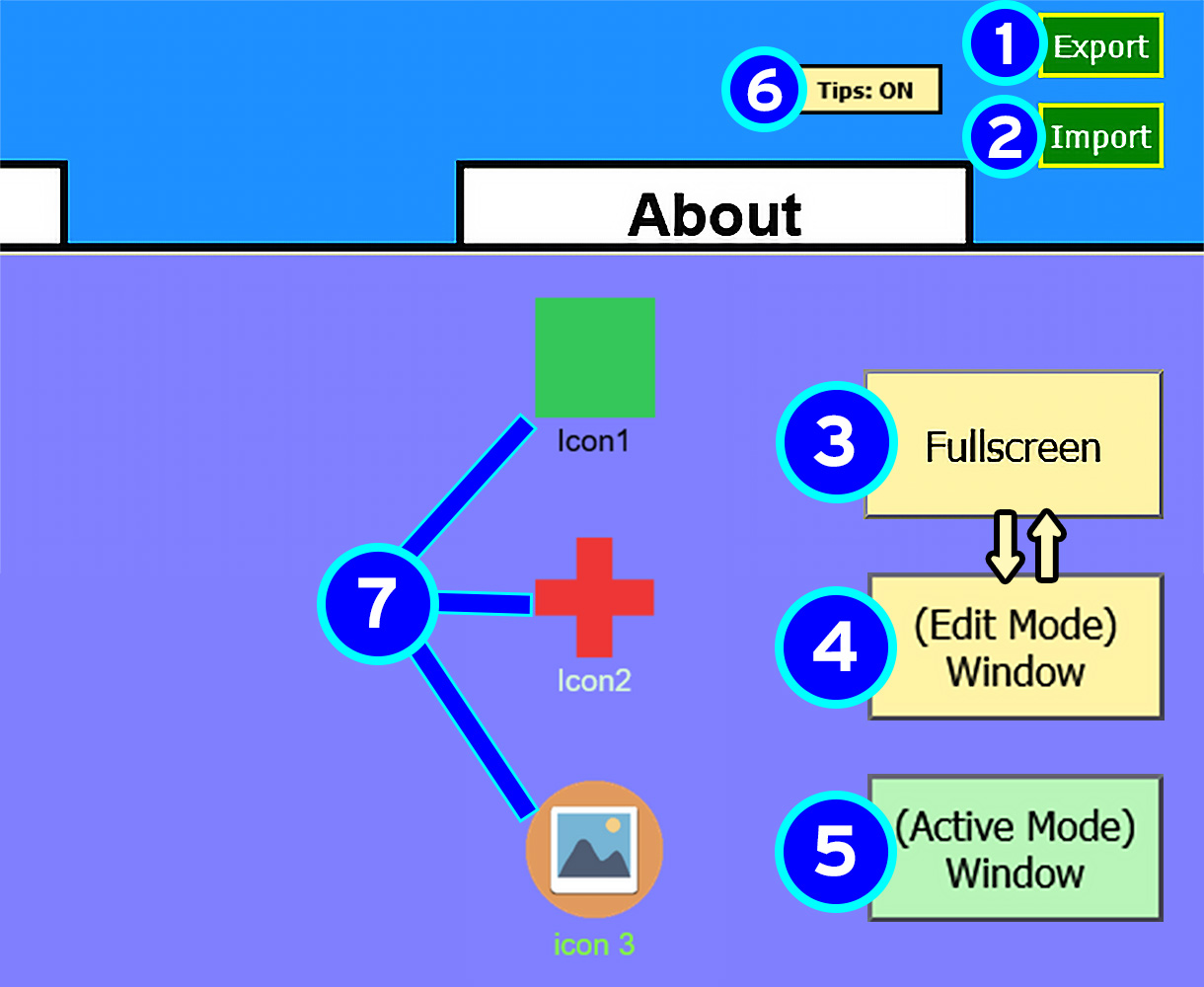
- ExportCopies your saved Web Desk data so you can back it up or move it to another browser.
- ImportLets you paste previously exported Web Desk data back into the app.
- FullscreenExpands the dashboard area and hides the top bar and sidebar.
- Exit Full Screen, currently in edit modeExit Expanded Dashboard, returning top and side bar, showing current mode while in fullScreen as Edit Mode.
- Exit Full Screen, currently in active modeExit Expanded Dashboard, returning top and side bar, showing current mode while in fullScreen as Active Mode.
- Hover Tips ToggleGives a quicktip when hovering over icons in Active or Edit mode
- Icons These are your custom created icons displayed on the dashboard. Edit Mode: Drag icons and click to edit them. Active Mode: Click to open the link.
Export & Import Layout
Save your dashboard or load a previously saved layout.
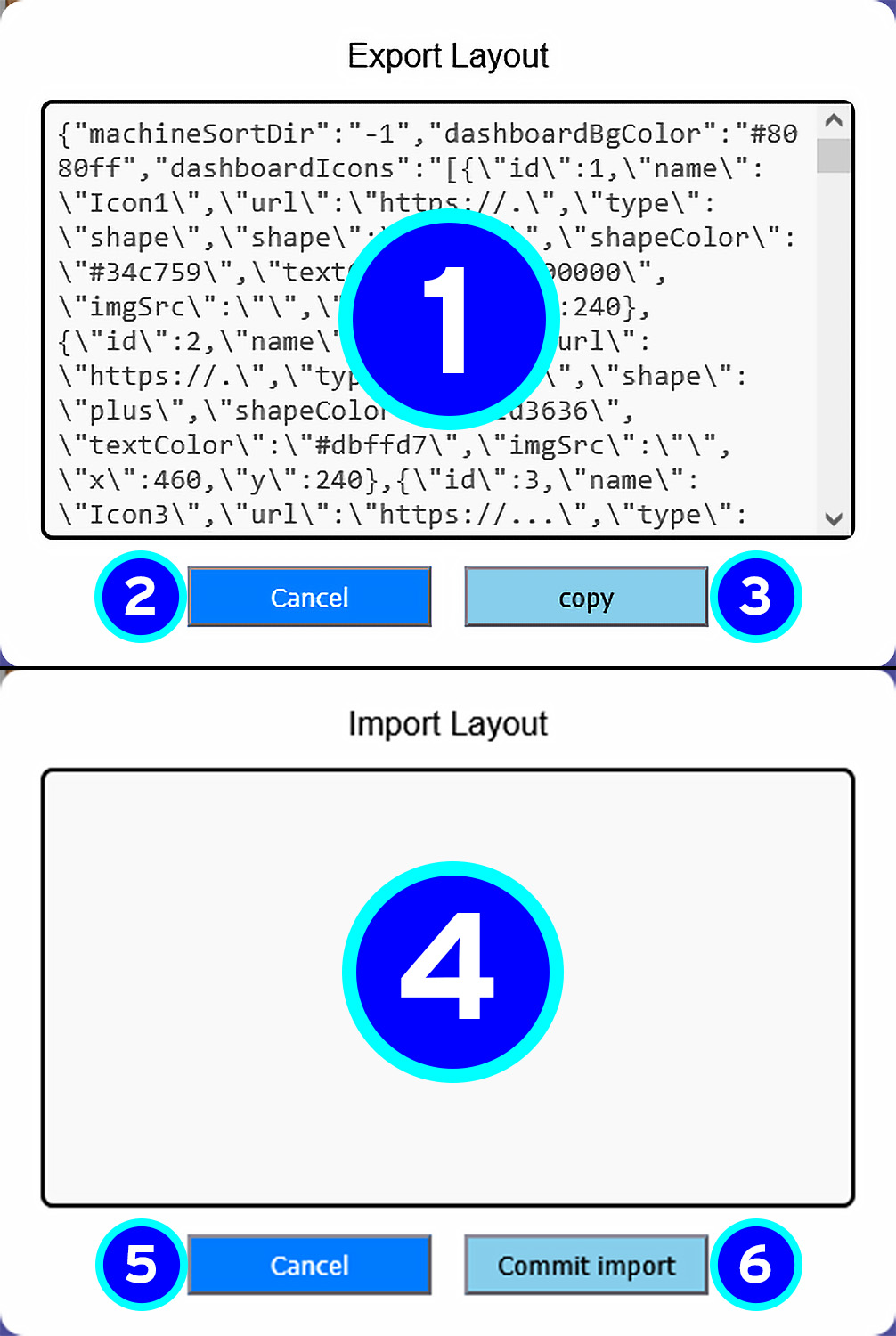
- Export DataDisplays your current dashboard data as text that can be copied.
- Cancel ExportCloses the export window without copying the data.
- CopyCopies the export data to your clipboard.
- Import Data AreaPaste your previously exported dashboard data here.
- Cancel ImportCloses the import window without applying changes.
- Commit ImportApplies the pasted data and loads the saved dashboard.
Web Desk
Stop drowning in endless tabs.
Web Desk gives you a simple personal desktop for the websites you use most.
Add big, colorful icons, arrange them your way, and use them as your home base.
Edit Mode: Build Your Desktop
1. Click Add Icon to create your first shortcut.
2. Add a label, website link, and either a shape or uploaded image.
3. Drag icons around to arrange your desktop.
4. Use Delete, Grid Snap, or Background to customize your layout.
5. Click Save to keep your layout for next time.
Active Mode: Use Your Desktop
1. Switch to Active Mode when your desktop is ready.
2. Click an icon to open its website.
3. Use the site for your task.
4. Close the tab with Ctrl + W on Windows or Cmd + W on Mac.
5. Return to Web Desk, ready for the next site.
Build first: Create useful icons, arrange your desktop, then switch to Active Mode.
Daily workflow:
Open a site, use it, close the tab with
Ctrl/Cmd+W then return home.
Backups: (Top Right) Use Export and Import for backups, multiple layouts, or moving browsers.